Introduction
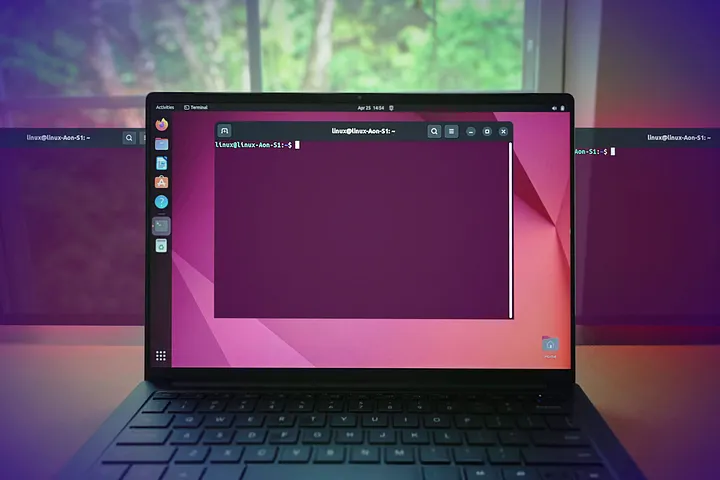
In 2025, I decided to give new life to my aging MacBook Pro 15" 2016 (model A1707, MacBookPro13,3) by switching from macOS to a fully Linux-based system. macOS support had ended, and I wanted up-to-date software and a stable system for my daily use. This article is my hands-on experience and practical guide for installing Ubuntu 22.04 LTS on this hardware — complete with step-by-step installation, driver fixes, and troubleshooting tips.
Downloading Ubuntu 22.04 LTS ISO
Although Ubuntu 24.04 LTS is now available, I specifically chose 22.04 LTS for maximum driver compatibility and long-term support.
- Download Ubuntu 22.04 LTS:
- https://releases.ubuntu.com/22.04/
- Main download page
I downloaded the ISO file to prepare a bootable USB.
Creating a Bootable USB
To make a bootable USB (at least 8GB), I used Balena Etcher:
- Download & write the ISO with Etcher:
- https://www.balena.io/etcher/
Partitioning the Disk in macOS
Before installing, I used Disk Utility on macOS to make space for Ubuntu:
- I created an 81GB partition dedicated to Ubuntu.
- In Disk Utility, always choose “Add Partition” (not “Add Volume”).
- Format as MS-DOS (FAT) for compatibility.
If you want “buy me a coffee” : https://www.buymeacoffee.com/nurxan02
Booting from the USB Drive
With the Mac turned off, I plugged in the USB stick and held the Option (⌥) key while powering on. In the boot menu, I selected the “EFI Boot” option to start Ubuntu.
Ubuntu Installation Steps
- Selected language and keyboard layout.
- Chose “Try or Install Ubuntu”.
- On the disk partitioning screen, I picked Manual/Custom (Something Else).
- 1. Located my previously created 81GB partition.
- 2. Set 1GB as swap and the rest as root (/) in ext4 format.
- Started the installation and rebooted after it completed.
First Boot & Initial Problems
After installation, I again used the Option key to select EFI Boot for Ubuntu.
The system launched fine, but I immediately faced some hardware issues:
- Wi-Fi networks visible, but unable to connect
- No sound from speakers or microphone
- Touch Bar & FaceTime HD camera not working
Wi-Fi Issues and Solution
The built-in Broadcom Wi-Fi adapter on this MacBook is notorious for Linux compatibility problems. The device detected networks but refused to connect — an issue seen on many Dell, HP, and older MacBooks.
Solution: Lowering TxPower Value
After much trial and error, I discovered that lowering the adapter’s TxPower value fixed the problem. Here’s what worked:
# Find your wireless adapter's name:
sudo iwconfig
# or
ip a

# Lower the TxPower (replace  with yours, e.g. wlan0, wlp3s0):
sudo iwconfig  txpower 10
Note: Use your actual adapter name from the previous command.
With this, I could connect reliably to 2.4GHz Wi-Fi networks.
5GHz Wi-Fi still doesn’t work with the Broadcom 43602 chip; I’ll update this post if I find a workaround.
If you want “buy me a coffee” : https://www.buymeacoffee.com/nurxan02
Fixing Audio (Speakers & Microphone)
Ubuntu does not natively support the Cirrus Logic CS8409 audio chip found in this MacBook.
I solved this by writing and publishing an open-source driver for the community.
Open Source Driver & Installation
- GitHub repository:
- https://github.com/nurxan02/snd-hda-codec-cirrus-logic-cs8409
# Install required build tools:
sudo apt update
sudo apt install build-essential linux-headers-$(uname -r) git

# Clone the repository:
git clone https://github.com/nurxan02/snd-hda-codec-cirrus-logic-cs8409.git
cd snd-hda-codec-cirrus-logic-cs8409

# Build and install the driver:
make
sudo make install

# Reboot:
sudo reboot
See README.md for troubleshooting and advanced tips.
Remaining or Partially-Solved Issues
- Touch Bar: Support is still very limited, mostly non-functional.
- FaceTime HD Camera: Still working on a solution — will update if/when it works.
- 5GHz Wi-Fi: No solution yet for the Broadcom 43602 chip, stay tuned for updates.
If you want “buy me a coffee” : https://www.buymeacoffee.com/nurxan02
Conclusion & Evaluation
It’s absolutely possible to run a stable, fully usable Ubuntu 22.04 LTS desktop on a 2016 MacBook Pro (A1707), but you must be ready for extra tweaks, drivers, and manual fixes — especially for audio and Wi-Fi.
All my fixes, scripts, and source code are open-sourced on GitHub.
For more updates and solutions, keep following this page!
Useful Links & Resources
- Ubuntu LTS Downloads: https://ubuntu.com/download/desktop
- Balena Etcher: https://www.balena.io/etcher/
- Disk Utility (Apple Support): https://support.apple.com/en-us/HT208496
- Cirrus Logic CS8409 Audio Driver: https://github.com/nurxan02/snd-hda-codec-cirrus-logic-cs8409
- Ubuntu Forums: https://ubuntuforums.org/
- StackOverflow: https://stackoverflow.com/
Feedback & Contributions
If you have this model (or similar) and have found other workarounds or fixes, feel free to comment below or open an issue/PR on my GitHub repo!
This guide was created from my own trial-and-error journey. For the latest fixes and solutions, check back regularly!
License
This article and the relevant drivers are released under GPL-2.0 or later.
If you want “buy me a coffee” : https://www.buymeacoffee.com/nurxan02